
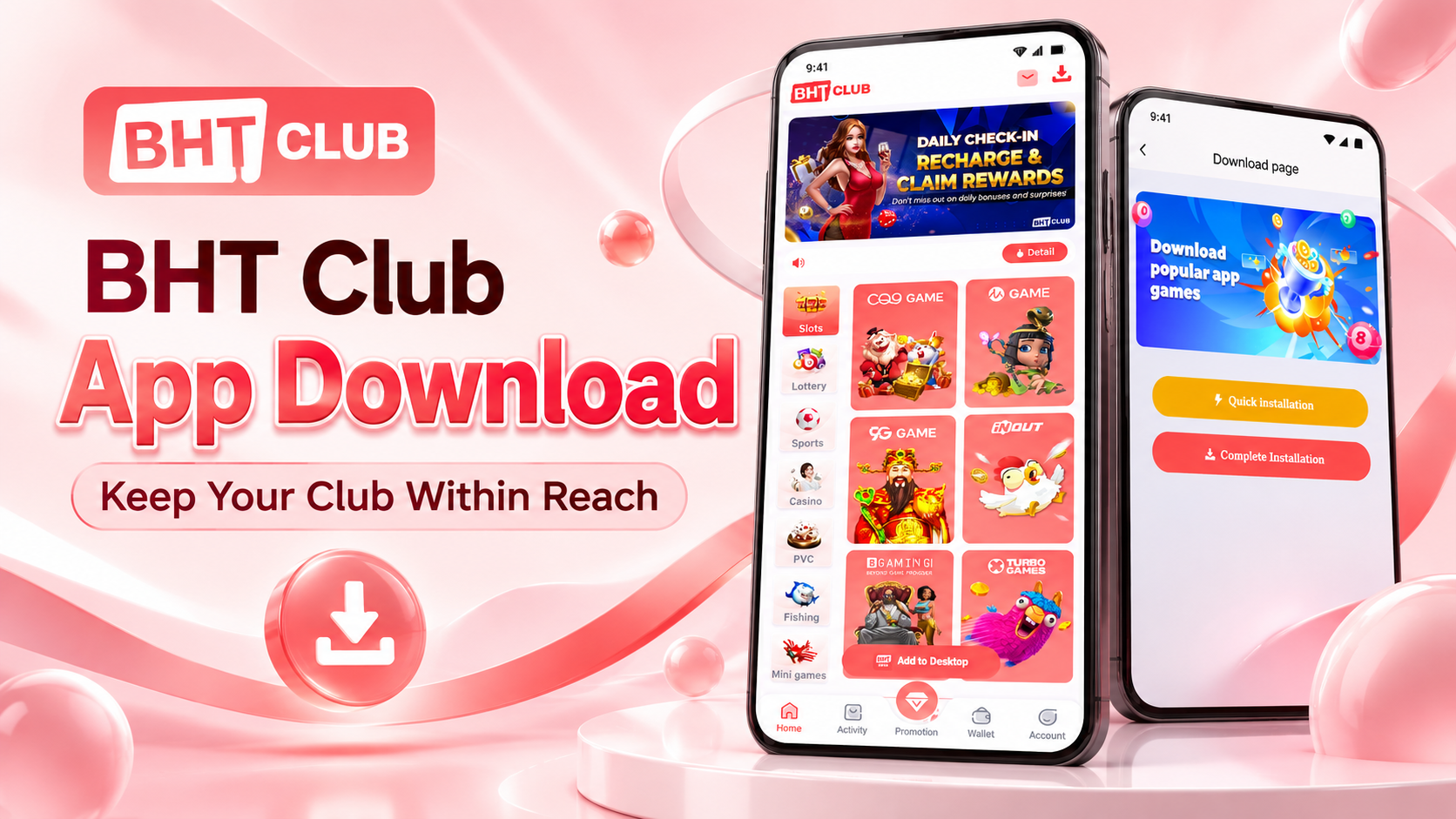
BHT Club Download App: Your Club, One Tap Closer
A familiar icon on your phone can make your next BHT Club visit easier. Instead of typing the website address each time, you can open the platform from your home screen and continue with your existing account. This BHT Club Download App guide helps you find the right starting point and complete the setup without confusion.
To begin, visit bht-clb.com and click Download APK. If you are already on the BHT Club game link, select Add to Desktop, choose Quick Installation or Complete Installation, and follow the instructions displayed on your phone.
You do not need to make the process complicated. Start with the website or the installation menu inside the game page, read the prompts and complete the option supported by your device. This page explains both routes, what to check before installing and how to handle common interruptions.
BHT Club Download App: Choose Your Installation Route
Some visitors arrive at the BHT Club homepage first. Others already have the game page open and want an easier way to return. Your starting point determines which installation route is most convenient.
| Where you are starting | What to select | What to do next |
|---|---|---|
| BHT Club website at bht-clb.com | Download APK | Follow the download and Android installation prompts |
| BHT Club game link | Add to Desktop or the download menu | Choose Quick Installation or Complete Installation and follow the displayed instructions |
The homepage route gives you a clear place to begin the BHT Club APK download. The game-page route lets you check the installation choices while you are already browsing the platform.
Choose the route that matches the screen in front of you. If the wording or button position changes, use the current instructions on the page rather than searching for an exact layout from an older guide.
Before You Download BHT Club on Your Phone
A little preparation helps you avoid stopping halfway through setup. Have your phone ready, check your connection and make sure you know which route you want to use.
Start with the Correct Website Address
Enter bht-clb.com carefully in your browser. Check the spelling before tapping the download button. Starting from a known address is more straightforward than choosing among files shared in messages or unfamiliar download pages.
If the website sends you to a game domain or download destination, check that the change followed the button you selected. A familiar logo alone does not establish the identity or safety of a file.
Give the Download Time to Finish
Use a stable connection and leave the download running until it completes. Repeatedly tapping the button can create several copies of the same file, making it harder to know which one to open.
Keep Your Account Details Ready
Returning members should have their usual login details available. Keep them private and enter them only into the expected sign-in form. You do not need to share your password with someone else to complete an installation.
How to Download the BHT Club APK from bht-clb.com
For visitors beginning at the homepage, the process starts with Download APK. Follow the file through download, installation and opening, rather than switching between different sources.
Open the Website and Select Download APK
Open your mobile browser, enter bht-clb.com and find the Download APK button. Tap it once and follow any instructions shown next.
If your browser asks you to confirm the download, read the prompt and check the destination before continuing. Wait for the download to finish; an incomplete file is not ready to install.
Open the Downloaded File
Once the download is complete, open the file through your browser’s download notification or your phone’s Downloads area. Check that you are opening the file you just requested.
If you have several older copies, pay attention to the download time and any version information available. Avoid installing a file simply because its name includes BHT Club.
Review the Installation Prompt
Your Android phone may display an installation prompt or a message about files downloaded outside an app store. Read the message before deciding how to proceed.
Check any requested permissions and the source information available. If a warning raises concerns about the file, pause and seek clarification through the support route published on the website. Do not disable device protection to force an installation.
Finish Setup and Open BHT Club
After installation completes, open BHT Club using the option on the screen or find its icon in your app list. Check that the expected platform loads before entering your details.
If you already have an account, select Login. New visitors can review the registration form and its conditions. Installing an app and creating an account are separate actions; returning members can continue with their existing account.
Add to Desktop from the BHT Club Game Link
Already inside the BHT Club game page? You can begin from there rather than returning to the homepage just to find the download route.
Look for Add to Desktop. Depending on the interface, a download icon may open the installation menu first. Select the available control and review the choices displayed.
The route you described is:
- Open the BHT Club game link through the website.
- Select Add to Desktop or open the download menu.
- Choose Quick Installation or Complete Installation.
- Follow the instructions for that choice.
- Confirm any installation or home-screen prompt.
- Find the BHT Club icon and check that it opens correctly.
The word “Desktop” can be confusing when you are holding a phone. Here, follow the mobile instructions attached to that button. You are setting up a more direct way to open BHT Club from your device.
If no icon appears immediately, check your app list and any pending browser prompt before repeating the process. The final placement can depend on how your phone completes the selected setup.
Quick Installation and Complete Installation
The BHT Club installation menu offers Quick Installation and Complete Installation. Read the explanation for each option on the current screen before choosing.
Their names alone do not confirm file size, speed, permissions or technical differences. This guide therefore does not label one as a shortcut and the other as a full APK without seeing that information in the installation instructions.
A home-screen shortcut, an installed web app and an Android APK are different forms of mobile access, even when each creates a similar-looking icon. What matters is the setup described on your screen.
What Mobile Access Changes
The clearest benefit is having a familiar starting point. An icon on your home screen can reduce the need to type an address or find the correct page among several browser tabs.
For a returning member, that convenience can be enough. Open BHT Club, sign in when needed and reach the platform through the access method you have already set up.
Choose the method that works comfortably on your phone. Browser access may suit someone who prefers not to install a file, while another visitor may prefer the APK route offered by the website.
Keep Your BHT Club Access Organised
clb.com so you have a familiar starting address available.
For updates, check the route provided by the website or platform. Do not assume that a file labelled “latest” in a forwarded message is the version you should install.
If the installation menu changes, follow the current instructions. Clear access comes from knowing where you began, which option you selected and how to get help if that route stops working.
Open Your Club from a Familiar Place
Begin at bht-clb.com and choose Download APK. If the game page is already open, use Add to Desktop, select Quick Installation or Complete Installation, and complete the instructions on your phone.